
Troubleshooting
- Boat will not turn on
- ESCs do not beep low-high when you plug in the phone
- Cannot hear the cooling pump running in rear compartment
- Cooling pump makes gurgling noises
- ESCs and/or motors are very hot
- Water is sitting in the rear compartment
- Boat’s WiFi network does not appear
- BlueBox will not turn on
- Tablet app will not connect to phone
- Tablet app crashes when connecting to phone
- Tablet connects to phone, but no data is displayed
- Tablet displays data, but it disappears
- Tablet data display flickers between different values
- Phone never stops notifications about missing BlueBox data
- Tablet displays some BlueBox data, but not all
- Boat arrow does not appear on tablet’s map
- Boat arrow points in the wrong direction
- Boat arrow location on the map doesn’t match true location
- Boat arrow moves unnaturally or erratically
- Tablet map does not load
- Tablet map does not show water features
- Tablet map rapidly loses detail after panning or zooming
- RC does not work
- Boat will not start navigating toward waypoints or respond to thumbstick
- Propellers turn in the wrong direction
- Prop boat banks to one side instead of driving straight
- Prop boat turns in circles or revs its motors back and forth
- Airboat’s airfan assembly will not turn
- Airboat fan is very loud, but produces little thrust
- Airboat is hard to manually steer
- LiPo battery is puffy
- Sampler jar does not start
- BlueBox data does not appear in WAIS web app
Boat will not turn on
Make sure that the battery is plugged in and has been charged.
Make sure that the breaker in the rear compartment is closed.
ESCs do not beep low-high when you plug in the phone
Each ESC is controlled via a 3-wire cable that connects to the e-board.
Make sure that these cables are correctly plugged into the e-board. First, make sure that the ground, signal, and power wires align with the indicators printed on the e-board.
If you have an airboat, there will only be one 3-wire cable. You will need to plug it into the correct spot.
Once the phone app is running and the phone is plugged into the Arduino, the ESCs should beep low-high.
If the ESCs rapidly beep several beeps the same pitch, make sure that you do not have the BlueBox loopback cable (BB-LB) plugged into the RC loopback spot (RC-LB). Each time the system starts successfully, the ESCs were sent an initial sequence of values to “arm” them. That sequence of rapid beeping means that the first signal the ESCs received was NOT the proper arming sequence.
Cannot hear the cooling pump running in rear compartment
The pump should turn on as soon as you turn on the e-board.
If you don’t hear a hum coming from the rear compartment of the boat, the most likely reason is the pump is not receiving power. Check that the pump is plugged in to its cable in the rear compartment, and check that this cable is connected to the e-board.
Cooling pump makes gurgling noises
The hum from the pump should be steady. If you hear gurgling, there is too much air in the system. You should add coolant. Check for coolant leaks.
ESCs and/or motors are very hot
The cooling loop should maintain reasonable temperatures for the ESCs and motors (if you have a prop boat). If they feel significantly hotter than ambient temperature, make sure that there is coolant in the loop, the pump is running normally, and that the coolant is freely flowing through the loop.
Water is sitting in the rear compartment
There should not be any water in the rear compartment. If you see any, you should determine if it is coolant or a leak.
Ideally the coolant will be colored, so this will be easy to tell. If not, look at the cooling loop’s resevoir. It should be nearly full. If if it is low, fill it back up and turn on the boat. Look for any coolant leaks.
If you can be sure that there is not a coolant leak, then the water is from a leaky hull. The most likely location of a small leak is around the base of the aluminum cooling tube’s penetrations. Apply a layer of silicone (or similar) sealant there.
Boat’s WiFi network does not appear
The boat’s WiFi Router should generate a WiFi network with a name similar to “Platypus-B1”. Once you turn on the e-board, you may need to wait for up to one minute to see the network. If the network does not appear after one minute, check that the router is plugged into the ethernet cable in the rear compartment, and check that that cable is connected to the e-board.
BlueBox will not turn on
First, make sure that a LiPo battery is properly plugged in and charged.
Then, if you flip the BlueBox power switch on, the BlueBox should turn on. If it does not, make sure that no wires have become loose. If all the wires are still in their proper connections, and the BlueBox still does not turn on, it may have been damaged.
Tablet app will not connect to phone
Make sure that the phone and tablet are on the same WiFi network.
Make sure that you used the correct IP address displayed at the top of the phone app.
Tablet app crashes when connecting to phone
The tablet application uses the MapBox API for the map. This API requires that the tablet has an internet connection at least once before any map tiles can appear.
Because the application cannot load any map tiles at all, it crashes.
The area where the map usually appears will be completely black until the tablet connects to the internet at least once.
To fix this, simply connect the tablet to the internet and open the application. The world map should appear, replacing the large black background. From this point on, the app should work as normal. Then an internet connection is only required for caching new map tiles.
If the tablet uses Android 7.0, in some cases you will be unable to use a connection if it does not use a CA certificate (e.g. the “eduroam” WiFi commonly found on university campuses). This is due to an operating system level SSL encryption handshake issue. If the tablet is connected to the internet, but the tablet app never loads any tiles, you will need to use an alternative internet connection!
Tablet connects to phone, but no data is displayed
If the phone app displays an IP address and you have started the app, the tablet should be able to connect to the phone. If the color bar in the upper left of the tablet app is green, the tablet successfully connected to the phone.
Once this connection is established, the phone should start sending data to the tablet once it is available. The phone will send only its location and heading until it is plugged into the boat. Then, battery voltage should appear automatically, and if a BlueBox is sending data, this should also appear automatically.
If the connection is successful, but if one or more of the types of data described above do not appear, then the most likely reason is a software version mismatch between the phone and tablet. Make sure that the phone and tablet have the most recent release versions of the INTCATCH software.
Phone never stops notifications about missing BlueBox data
There are a few reasons why this might happen.
- The sensor type options in the phone app does not have BlueBox for sensor 2. See here
- The “Set sensor types” button at the bottom of the app was not used after plugging in the phone. See here
- One of the cables used in the serial connection between the BlueBox and the eboard arduino is not plugged in correctly.
- The BlueBox did not recognize the eboard arduino and start sending data to it.
Try using the “Set sensor types” button again. You must press and hold it for about 1 second. Occasionally, if the user presses the button during a small time window as the next notification is generated, the command issued by the button is ignored. Try to use the button in between the notifications.
The BlueBox uses udev rules to automatically recognize the eboard’s arduino. Usually these udev rules are used when the BlueBox boots up. Occasionally, they will not function correctly during boot, so you will need to trigger them again. You do this by unplugging and replugging the grey USB cable attached to the BlueBox’s USB hub. The hub is on the right (starboard) side of the white housing.
video also available at http://intcatch.eu/manual/_static/videos/usb_hub.mp4
Tablet displays some BlueBox data, but not all
The BlueBox allows a user to change a sensor’s name, parameter, units, etc., but the phone and tablet will only display a limited set of data that they expect to receive. The list of expected parameters is strict (but not case sensitive).
For example, if you want to display pH data, the parameter field used by the BlueBox must be “pH”, “PH”, “Ph”, or “ph”. If that is changed to “p_H” or any other variant, the phone will no longer recognize it, and will not relay it to the tablet for display. In contrast, the BlueBox will still send the data to the BlueGate cloud database.
Similarly, if a new type of sensor is added to the BlueBox (e.g. a virtual sensor created from a combination of other parameters), if that parameter is not already expected by the phone, it will not be relayed to the tablet for display.
The software can be revised to expand the list of expected parameters.
Tablet displays data, but it disappears
The sensor data display is dynamic. There is not a fixed position for any type of data. Once a new parameter is received, the list of parameters is expanded.
To avoid displaying stale data, there is a 10 second deadline for a parameter to reappear. Every time a new datum is received, if more than 10 seconds pass before another datum is received, that parameter will drop out of the list, and will no longer be displayed. The list of parameters can appear to shuffle due to this.
Tablet data display flickers between different values
The sensor data display is sorted by parameter. Different probes may share parameters, but measure distinct values. For example, the electrical conductivity probe and the dissolved oxygen probe both measure temperature. Both of these temperature values are sent to the tablet app for display.
The tablet pools all data with the same parameter together into one spot in the display. So if the EC probe and DO probe send distinct temperature values, the one that arrives first will display, and then the one that arrives second will replace it. Because of this, you may see the displayed value quickly change between values.
In some cases, if there is an issue with a probe, this difference can be unrealistically large.
Boat arrow does not appear on tablet’s map
The location and heading of the boat is represented by a colored arrow displayed on the map. The phone’s GPS provides the location. If the tablet is connected to the phone, and the phone app has started, but an arrow does not appear, the phone probably does not have a GPS fix yet.
If the phone does not have a GPS fix, the arrow will appear in a default location. Once the phone has a GPS fix, the arrow will jump from the default to its actual location. You can press the “Center” button in the upper-left corner of the tablet’s map to jump to the boat’s arrow.
If the phone never achieves a GPS fix, you will be unable to use the autonomous navigation. Make sure that the phone’s GPS is on. If you are certain that the phone has a GPS fix, but the arrow still never appears, make sure the “Use Decawave instead of GPS?” checkbox in the phone app options is NOT checked.
Boat arrow points in the wrong direction
The phone’s orientation sensors provide the cardinal (compass) heading for the boat. When this is working correctly, the arrow should point in the same direction as the boat.
If the arrow does not point in the same direction, there may be one or more causes:
- The phone’s compass needs to be calibrated.
- The checkboxes in the phone app options are not correct.
- The phone is not mounted in the white housing correctly.
Boat arrow location on the map doesn’t match true location
You should expect an offset error in the phone’s GPS of a few meters. Because of this, the map will usually not match up to the “true” map. For example, the boat can navigate through a narrow canal or close to a shoreline, and the boat’s arrow might appear outside of the canal or on land.
In these cases, it is best to manually navigate the boat in areas where a collision might occur. You can use the “drop waypoint at boat” button to place waypoints on top of the arrow. A user would drive the boat around, periodically dropping waypoints. In this manner, you can create paths that will not cause collision when they are replayed.
Boat arrow moves unnaturally or erratically
In contrast to the offset error described here, if the arrow seems correct some of the time, but drifts around the map, a phenomenon called GPS multi-pathing is probably occurring. This can occur when large (usually man-made) structures interfere with the boat’s view of the skyline.
The signal from GPS satellites is bouncing off of these structures, creating an illusory, erroneous GPS location. As the boat moves around, the signals may or may not reflect off of the structures, causing the boat arrow to move around in very strange, unexpected ways.
When this occurs, you must manually pilot the boat. Autonomous navigation will fail in very unexpected ways, as it depends on a realistic, smoothly changing GPS location.
Tablet map does not load
The tablet map can only display map tiles that it has downloaded from the MapBox tile server. When a user navigates the map to a new location and/or zoom level, if the tablet has not already downloaded those tiles, the tablet will display a default featureless image. The vector map will show a light tan color for land and light blue for water in the default image. The satellite image map will show a pure black color for the default image.
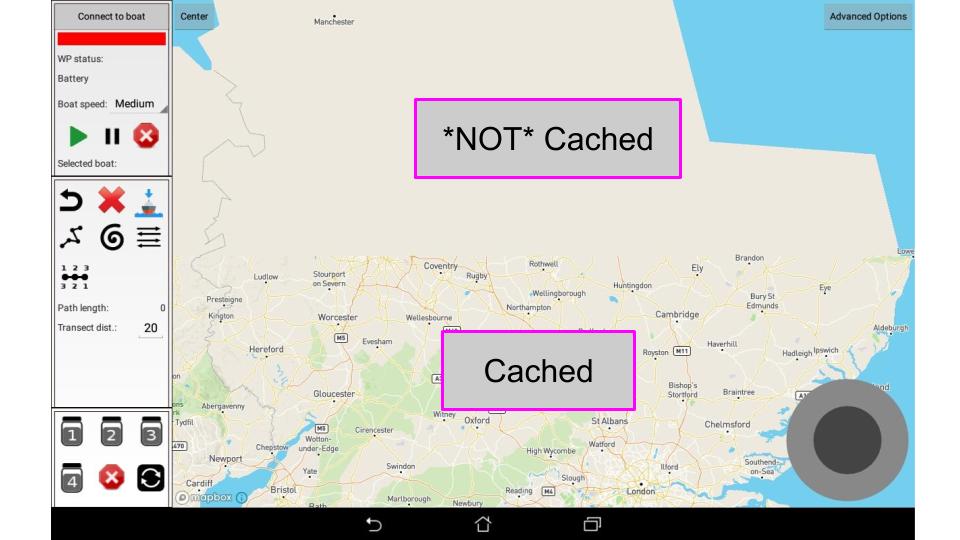
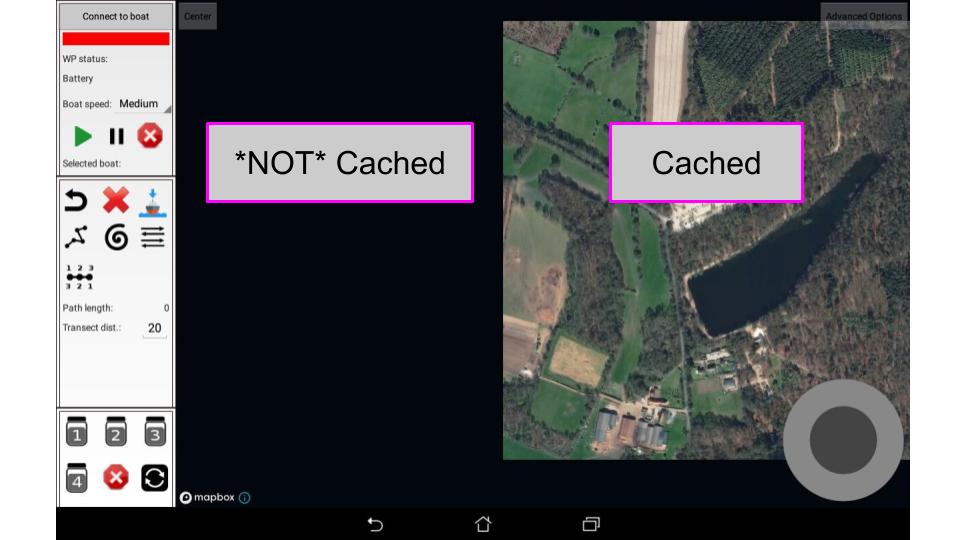
When you deploy the boat, the tablet is connected to the boat’s WiFi router, which does not provide an internet connection. Because of this limitation, you need to pre-download (cache) the map tiles you need before deploying.
Tablet map does not show water features
The map tiles that MapBox provides for the tablet app do not always have complete information.
If a water feature is small, it may be completely absent from the vector map, or representing with a simplified thin straight line.
If a water feature is so new that it has not been added to any map tiles, the water feature may be missing from both vector and satellite map tiles.
If a water feature is occluded by trees, buildings, or other tall objects that get in the way of the satellite camera, it may not be visible in the satellite map.
Tablet map rapidly loses detail after panning or zooming
The MapBox map exhibits a bug, where cached map tiles display in full detail at first, but rapidly start to unload. When this occurs, the map display will continuously lose detail despite remaining at the same zoom level.
To make sure this is occurring, first ensure that you have cached the map tiles you need. After caching, make sure the tablet is not connected to the internet. Then navigate to the location and zoom level you cached. If this bug is occurring, the map will rapidly unload tiles and lose details until it looks as if you never cached the map at all.
To fix this,
- Connect the tablet to the internet
- Navigate to the Android OS application settings (Settings -> Apps -> Platypus control app)
- Press the button to clear data.
- Uninstall the app.
- Reinstall the app.
- Re-cache the tiles.
An issue has been logged with MapBox to address this bug: https://github.com/mapbox/mapbox-gl-native/issues/11996.
RC does not work
First, make sure that the “model” selected in the FrSky transmitter matches the receiver in the boat you are trying to control. Each model is unique to a receiver. Usually the model, boat, and BlueBox will share the same ID to make this easier. If you have the correct model selected, the RC receiver in the boat will show a green LED. Otherwise, the receiver will show a red LED.
Second, make sure that the RC override is turned on.
Lastly, make sure that the throttle is not all the way down. If it is at 0, the maximum trust allowed is 0 - no thrust at all.
Propellers turn in the wrong direction
Five things control the direction of the thrust provided by a propeller.
- The control signal sent to the ESC, which ranges between -1 and 1.
- Which control signal is being sent to the right (starboard) ESC vs. the signal sent to the left (port) ESC.
- The direction the motor turns when the control signal is positive or negative, the “phase” of the motor.
- The pitch of the propeller blades - this determines a forward or backward thrust for a given rotation direction.
- The vehicle type listed in the phone app options.
With the boat on the shore, and the propellers free to spin in the air, use the RC control to perform three tests. Make sure that the phone is plugged in, and you have pressed the sensor type button. During each test, place your hand behind the propellers and feel for air pushed by the propeller as it spins. If the propeller is pulling air, you will not feel it.
- Test 1: thrust forward. If a propeller does not push air backwards, the motor is out of phase or the reverse pair is backwards. Open the rear compartment and reverse the motor phase.
- Test 2: turn left. The left propeller should suck air, and the right propeller should push air backwards. If the reverse is true, switch the 3-wire cables on the e-board.
- Test 3: turn right. If you have completed Test 1 and 2 correctly, the left propeller should push air, and the right should pull air.
If only one of the motors runs, it is possible that you have the vehicle type set to vectored, i.e. an airboat. If a propeller boat thinks it is an airboat, only one motor will spin.
Prop boat banks to one side instead of driving straight
Make sure that a reverse pair of propellers is installed on the boat.
Prop boat turns in circles or revs its motors back and forth
If a boat fequently revs its motors back and forth while autonomously navigating straight, one of the propellers may be damaged. A broken propeller will cause the thrust on one side of the boat to be greater than the other side, causing the boat to turn constantly. If the damage is extensive for one propeller but not the other, the boat may even turn in circles.
Check for a damaged propeller.
If the propellers are not damaged but the boat still revs the motors back and forth, the PID control needs to be adjusted.
Airboat’s airfan assembly will not turn
There is a servo at the bottom of the airfan assembly that is responsible for rotating it left and right.
Make sure that this cable is connected to the 8-pin “S0” connection on the top of the white housing. The connection may be labeled as “fan” or something similar.
Check that the vehicle type in the phone app options is set to vectored, and press the set sensors type button. If an airboat thinks it is a propeller boat, the servo will not receive the proper signals, and the assembly will not turn.
Airboat fan is very loud, but produces little thrust
Check if the fan propeller is damaged. If the propeller is intact, make sure that the airfan assembly is not backwards.
If the airfan is mounted backwards, and the fan motor has a reversed phase, the thrust will be in the correct direction but will be very weak. The airfan motor has a dominant direction - it produces much more thrust in that direction. The motor shaft should point to the front of the boat. If it is reversed, flip the airfan assembly around and reverse the motor’s phase.
Airboat is hard to manually steer
The airboat is much more difficult to control by hand. If conditions allow it, autonomous navigation is highly recommended for the airboat.
The boats tend to “drift”, continuing their last thrust action, for a significant amount of time. Imagine that you are turning the boat in place, then let go of the thrust - the boat will continue to spin for a little bit.
Thus, it is very easy to overshoot. You need to anticipate this overshoot, and in some cases, actively thrust the opposite direction to prevent it.
Again, imagine you are turning the boat in place. As you approach the heading you want to stop at, turn the fan all the way in the opposite direction and thrust for a short burst. This will stop the drifting rotation, ending the turn with the desired heading.
This “feedforward” anticipatory control is not intuitive, thus you will likely need more practice controlling the airboat manually. With practice, you will be able to identify when the boat is starting to rotate too far and counteract it.
Therefore, it is recommended that you learn to steer the airboat on a calm lake or pond deployment before a challenging deployment, such as the flowing water in a stream or river.
LiPo battery is puffy
The LiPo battery can be damaged if you drain too much of the energy. It is difficult to say what voltage this occurs at, how long a battery’s lifetime will be, etc. In any case, a healthy LiPo battery feels firm if you squeeze it. If the LiPo battery has become puffy and feels squishy if you squeeze it, do NOT continue using it.
Read the safety page on LiPo batteries.
Sampler jar does not start
If you press the button to start a jar but the sampler does not turn on the corresponding jar, long press (hold for ~ 1 second) the sampler reset button.
BlueBox data does not appear in WAIS web app
Make sure that the BlueBox is turned on.
Try using BlueGate to see if any data is being sent over the 3G network.
Verify that the WAIS campaign time window matches would include the timestamp in the BlueBox.
Lastly, if all of the above are working correctly, check if the BlueBox GPS receiver has a fix.